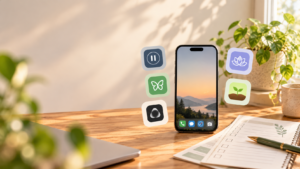
A useful phone does not need to be an entertaining phone. It can still handle directions, calls, messages, banking, tickets, calendars, photos, and emergencies without presenting every idle moment as an invitation to scroll.
That is the idea behind making your phone boring: keep the tools you rely on, but reduce the visual cues, alerts, shortcuts, and frictionless feeds that pull you in without a clear purpose. You are not trying to punish yourself or turn a modern device into a brick. You are redesigning the path between “I picked up my phone” and “I spent twenty minutes somewhere I never meant to go.”
The most sustainable setup is usually selective. Navigation can stay convenient. A family member can still reach you. Your authenticator and transit pass can remain one tap away. What changes is that nonessential apps stop competing to be the first thing you notice.
What does it mean to make your phone boring?
A “boring phone” is not a special device. It is a smartphone configured so that necessary functions remain easy to access while optional, high-distraction experiences become less visually prominent and less automatic.
In practice, that means separating three kinds of phone use:
- Essential and time-sensitive: calls from family, two-factor authentication, maps, transportation, medical or safety alerts, and work functions that genuinely require a fast response.
- Useful but not urgent: email, banking, weather, calendars, podcasts, camera tools, and messaging that can be checked at chosen times.
- Easy to overconsume: infinite feeds, short-form video, news refreshes, games, shopping, and any app you repeatedly open without deciding to.
The goal is not to declare the third group morally bad. It is to stop giving it the same speed, visibility, and interruptive power as the first group.
Why changing the environment can work better than relying on willpower
Phone habits are often described as a self-control problem, but the device itself supplies many of the cues that start the behavior: a vibration, a badge, a colorful icon, a lock-screen preview, or an app positioned where your thumb expects it.
Notifications can affect attention even when you do not answer them. In an experimental study, receiving a phone notification disrupted performance on an attention-demanding task without participants interacting with the device. That does not mean every notification causes a major real-world failure, but it supports a practical point: an alert consumes attention before you decide whether it deserves any.
A randomized controlled trial tested a package of ten small changes, including disabling nonessential notifications, keeping the phone out of reach, hiding social and email apps, and using grayscale. The intervention reduced problematic smartphone use, although the study tested the package rather than proving that any single tactic caused the improvement. Participants also followed some changes more readily than others: notification reduction was easier to maintain than full-time grayscale.
This is why a boring-phone setup should not depend on one dramatic switch. It works best as a collection of modest design decisions that make intentional actions easy and automatic detours less convenient.
Start with a usefulness audit, not a deletion spree
Before rearranging anything, look at your phone’s built-in usage report. On iPhone, Screen Time shows app activity, pickups, and notifications. On many Android devices, Digital Wellbeing shows screen time, times opened, and notifications received. Treat these numbers as clues, not a grade.
For each frequently used app, ask four questions:
- What specific job do I want this app to perform?
- Does that job require immediate access?
- Does it need permission to interrupt me?
- After I finish the useful task, does the app make it easy to drift into something else?
A video app may be useful for tutorials and also be a common entry point into an endless recommendation feed. A news app may be valuable during severe weather but unnecessary as a source of hourly headlines. The answer does not have to be “delete it.” You can keep the function while changing its location, notifications, or access schedule.
A practical boring-phone setup
1. Remove nonessential notification permission
Begin with the apps that interrupt you most often. Turn off promotional alerts, suggested posts, breaking-news notices that are not genuinely urgent, shopping updates, game reminders, and social reactions. For apps you keep, consider disabling sounds, vibration, lock-screen previews, and badges separately.
Do not silence safety-critical alerts or communication you truly need. Instead of asking “Can this app notify me?” ask “What would go wrong if I saw this the next time I deliberately opened the app?” If the answer is “nothing,” the notification probably does not need immediate access to you.
2. Build a one-screen home screen
Your first screen should function like a tool belt, not a storefront. Keep a small set of apps that help you do something concrete: phone, messages, calendar, maps, camera, notes, transit, weather, or music. Remove widgets that continually refresh headlines, trends, email counts, or recommendations.
Move distracting apps off the first screen. A folder on the last page is enough for some people; others benefit from removing the icon from the home screen entirely and using search when they have a reason to open it. Search converts a reflex into a small decision because you must name the app you intend to use.
3. Use grayscale strategically
Grayscale removes color from the display, which can reduce the visual salience of icons, badges, thumbnails, and games. A recent crossover feasibility trial among 51 first-year medical students found lower mean daily screen time during a grayscale week than during a color week. The result is promising but limited: the participants were a specific student group, the intervention periods were short, and the visible condition made blinding impossible.
Other studies have also reported that people find grayscale less alluring, while some find it frustrating or impractical. Color matters for maps, photographs, design work, charts, status indicators, and accessibility. You do not need to use grayscale all day. Try it during evenings, focused work, or the hours when habitual scrolling is most likely.
On iPhone, grayscale is available under Accessibility > Display & Text Size > Color Filters. On Android, availability varies, but many devices can schedule grayscale through Digital Wellbeing’s Bedtime mode. Check your current operating-system instructions because menu names can change.
4. Create a Focus mode that protects the useful phone
A good Focus mode is not “allow nothing.” It is a deliberate allowlist. On iPhone, Focus can allow selected people and apps, use a simplified home-screen page, and activate on a schedule. Android’s Digital Wellbeing can pause selected distracting apps through Focus mode and suppress their notifications while the mode is active.
Create one mode for your most common vulnerable period—perhaps work, reading, family dinner, or the hour before bed. Allow calls from priority contacts, calendar alerts, maps, and any essential work or caregiving app. Pause the apps that tend to turn a quick check into an open-ended session.
5. Add friction without creating emergencies
Friction should create a pause, not a crisis. Log out of one especially sticky service. Use the web version instead of the app. Keep entertainment apps off the dock. Charge the phone beyond arm’s reach. Place it face down when you are working or talking with someone.
Choose friction proportional to the problem. If an app is mildly distracting, moving its icon may be enough. If you repeatedly override your own limits, deleting the app while keeping browser access can help. If you need the app for work, a scheduled Focus mode may be safer than removing it.
6. Give necessary communication clear rules
Many people keep every alert active because they fear missing a genuinely important message. Solve that directly. Decide who can bypass Focus, whether repeated calls should ring, and which channel people should use in an urgent situation. Tell close contacts that a call is appropriate when something cannot wait.
This protects availability without treating every promotional email, group-chat reaction, and app recommendation as equally important.
Use the smallest change that solves the actual problem
| What keeps happening | Try this first | Keep available |
|---|---|---|
| You open social media from muscle memory | Remove it from the home screen and log out | Messages and calls from real contacts |
| Badges make you check repeatedly | Disable badges and lock-screen previews | Time-sensitive alerts you have deliberately allowed |
| You scroll in bed | Schedule Bedtime/Focus mode and charge the phone across the room | Alarm, priority calls, and emergency alerts |
| Your first screen feels busy | Keep one page of task-oriented tools | Maps, calendar, camera, notes, transit, weather |
| You override limits automatically | Use the browser version or delete the app for seven days | The underlying account and essential functions |
| Colorful feeds hold your attention | Schedule grayscale during high-risk hours | A quick way to restore color for maps, photos, or accessibility |
What not to remove
A phone can support independence, safety, work, connection, and accessibility. Do not copy someone else’s minimalist setup without considering your circumstances.
Keep emergency alerts enabled. Preserve access to medical devices or health information you rely on. Make sure caregivers, children, schools, and essential work contacts have a reliable route to reach you. If color filters make the phone harder to use because of low vision, color-vision needs, or the type of work you perform, skip grayscale. If authentication apps protect important accounts, do not make them difficult to reach merely for aesthetic simplicity.
The aim is not maximum inconvenience. It is a better match between the phone’s design and your priorities.
A 20-minute boring-phone reset
- Minutes 0–3: Identify the top three detours. Look at recent usage and write down the apps you open most often without a clear intention.
- Minutes 3–8: Quiet the alerts. Remove nonessential notification permissions from those apps, including badges if they pull you back.
- Minutes 8–12: Clear the first screen. Keep only task-oriented tools and move the three detour apps out of sight.
- Minutes 12–16: Build one Focus mode. Allow priority people and essential tools; pause the detour apps.
- Minutes 16–18: Add one physical boundary. Choose a charging place outside the bedroom or a phone parking spot near the door.
- Minutes 18–20: Define the test. Run the setup for seven days and note what becomes easier, what becomes inconvenient, and what needs adjustment.
Do not keep changing the system every hour. A short trial gives the initial novelty time to wear off and reveals whether the environment is actually helping.
How to tell whether the setup is working
Screen time can be useful, but it is not the only measure. A person may spend two hours navigating on a trip or talking with family and feel satisfied. Another may spend twenty minutes bouncing between apps and feel scattered.
After a week, ask:
- Am I opening my phone with a clearer purpose?
- Are fewer pickups triggered by alerts or visible badges?
- Can important people still reach me?
- Have I accidentally made a necessary task too difficult?
- When I finish a useful task, do I put the phone down more often?
Keep the settings that reduce unwanted use without creating meaningful harm. Restore anything that interferes with safety, accessibility, work, or relationships. The best boring phone is not the most extreme one; it is the configuration you can live with.
Why another anti-distraction app may not be the first answer
Some blocking and tracking apps are helpful, especially when they add accountability or controls your operating system lacks. But installing another app can also create another dashboard to inspect, another set of notifications, and another tool that is easy to disable when motivation changes.
A review of apps designed to reduce mobile-phone use found that the evidence base varies across strategies and studies. It is difficult to identify one universally effective feature because interventions, measurements, and populations differ. Start with the controls already built into the device and the physical environment around it. Add a specialized tool only when you can name the gap it needs to fill.
Paper can be useful here precisely because it does not live inside the device you are trying to configure. If you want a structured one-week experiment, the 7-Day Unplugged Reset helps you notice triggers, test boundaries, and adjust your setup without asking another app to hold your attention.
Frequently asked questions
Does grayscale really reduce screen time?
Several studies suggest that grayscale can reduce visual attraction or screen time for some participants, but the evidence does not show that it works equally well for everyone. Recent positive findings come from specific groups and short study periods. Treat it as a reversible experiment, not a cure.
Should I delete social media?
Only if deletion fits your goal and circumstances. Moving the app, disabling alerts, logging out, or using the browser version may provide enough friction while preserving access. If those changes do not help, a seven-day removal can give you better information about the app’s role in your routine.
What should stay on the home screen?
Keep tools that lead to a defined action and usually have a natural stopping point: maps, camera, calendar, notes, weather, transit, music, or a reading app. Your list can differ. The important question is whether the icon supports an intention or routinely creates a detour.
Can I still be reachable with notifications off?
Yes. Allow calls and messages from priority contacts, use repeated-call exceptions if appropriate, and explain how people should reach you in an urgent situation. Reachability does not require every app to interrupt you.
Make the phone serve the plan
A boring phone is not anti-technology. It is a phone whose most visible features correspond to what you actually want it to do. The device remains powerful; it simply stops advertising every possibility at once.
Begin with the smallest defensible change: quiet one noisy app, clear one home screen, or schedule one Focus mode. Then observe what happens for a week. If the change helps, keep it. If it creates a real problem, revise it. Intentional technology use is not about winning a purity contest. It is about making the useful path easier to follow.
For more practical ideas, explore the Digital Habits library and learn why automatic phone checking happens.